Follow these steps to reset your Plesk account password.
1. Open your Plesk login URL.
2. Click on Forget your password.
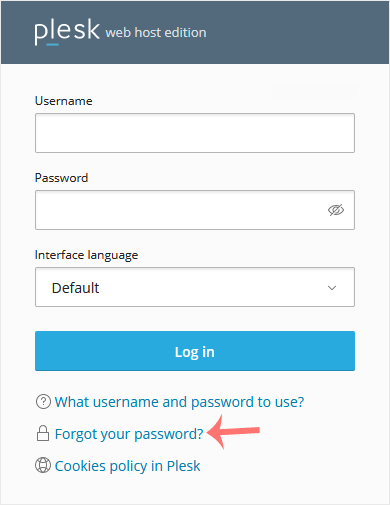
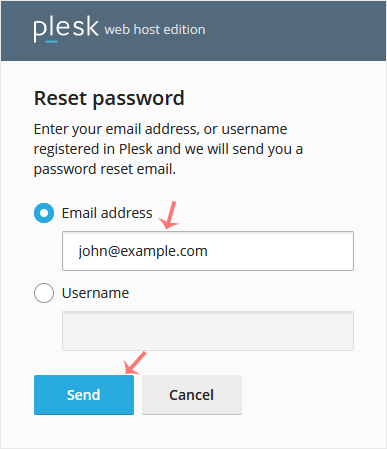
3. On the Reset password page, enter your email address or choose the Username option. Then type your username, and click Send.
4. You should receive an email with the reset link. Please, open it.
5. Enter the new password or click Generate to create one. You can copy it by clicking on the view password icon.
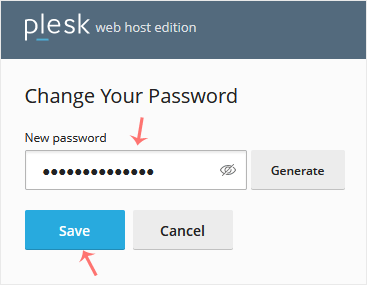
6. Click on Save.
After resetting the password, you can log in to Plesk with the new one.
A tutorial on how to access the Plesk Control Panel. After you place an...
1. Log in to your Plesk account. 2. Click on Files from the Sidebar Menu....
Follow these steps to change your Plesk account password. 1. Log in to...
Follow these steps to change your Plesk contact email address. 1. Log...
Follow these steps to change the language of the Plesk Panel. 1. Log...