1. Log in to your DirectAdmin account.
2. In the Advanced Features section, click on Create/Restore Backups or type Restore in the navigation filter box, and the option will appear. Click on it.
3. Click on Restore Backup. You will find it on the top right.
4. Under Restore Backup, click on the drop-down menu and select the backup you wish to restore.
5. Under Restore Options, uncheck the data you do not want to include in the restore.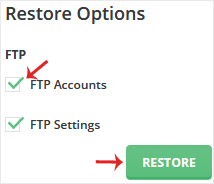
6. Scroll down to the end of the page and click on Restore Backup.
You can check the status of your restore from the Messages option. From the top right side, click on your Username >> Messages.
Note: The process of restoration can take some time. Check Messages after a few minutes. The speed of the operation will depend on the size of your backup.
You can make a backup of your DirectAdmin account and download it. How to...
You can download a backup of FTP data, email, or database-only backup from...
You can remove backup files from your DirectAdmin to reduce disk space usage....