You can set up a cPanel email account with Microsoft Outlook 2019 and manage your email account.
1. Open Outlook 2019.

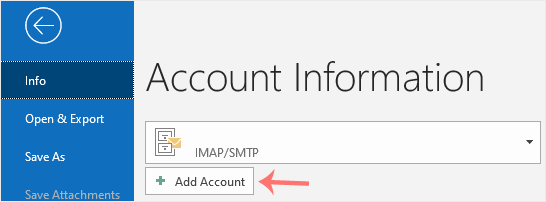
2. Go to File > Info and click on Add Account.
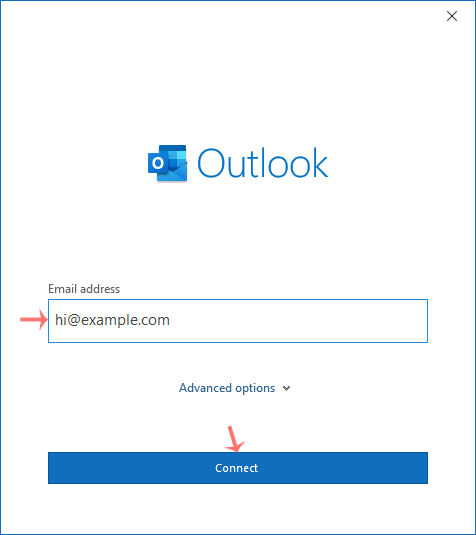
3. Enter your full email address, such as yourname@example.com, and click Connect.
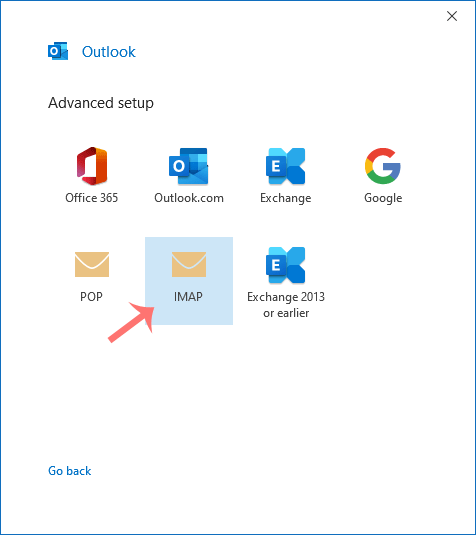
4. In Advance Setup, select IMAP.
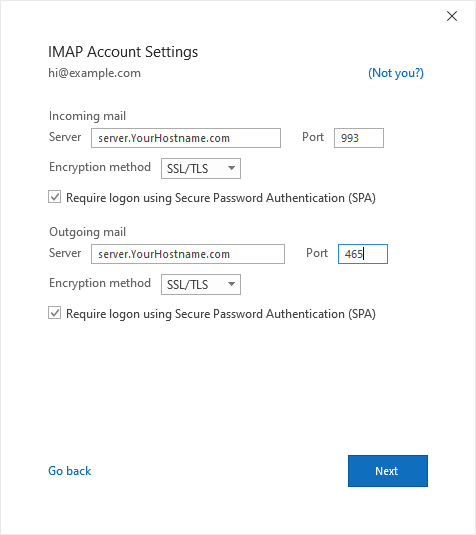
5. Enter IMAP details as provided below the screenshot but change the hostname to your server hostname and make sure that your IMAP port is correct.
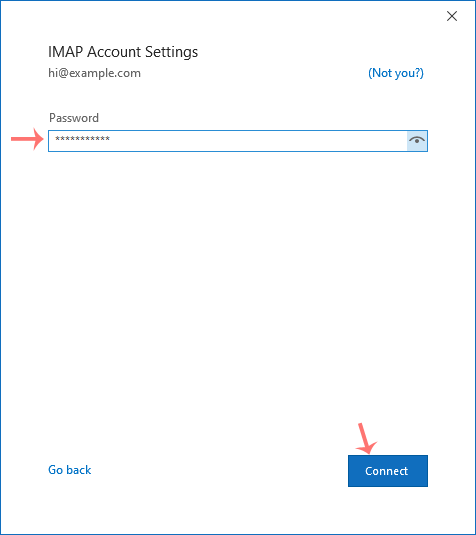
6. Enter your email password and click Connect.
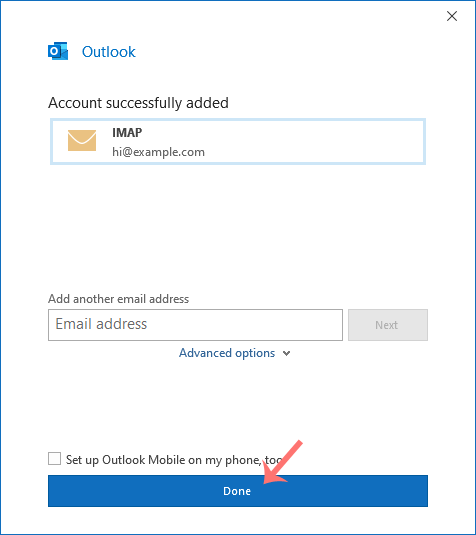
7. Finally, click on Done.
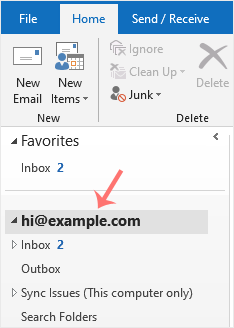
You can now manage your newly-added email from the left sidebar under the Home tab of Outlook.
You can easily remove email in Outlook 2019. If you use the POP email...
You can forward the email using Outlook 2019. 1. Open Outlook 2019....
You can reply to emails using Outlook 2019 instead of cPanel Webmail....
You can send emails using Outlook 2019. It is pretty straightforward because...
1. Open Outlook 2019. 2. In the left panel. You can see a list of...